Bookflix – Promoting reading for pleasure.
After being shown the @klslangley Bookflix tweet by my wife (an avid book worm and English teacher) I was inspired and excited to make our very own using Keynote. To be honest, any excuse to play around on Keynote and make something!
Sitting waiting for my hair to be cut in the Barbers, I started to collect the front covers of the books that feature. Searching Amazon and then saving the image to my camera roll or using a screenshot, I managed to collect nearly 60 book covers in a relatively short amount of time.
All of the books that feature in our Bookflix are the recommended books for each keystage and are already shared with our students via our VLE. Bookflix however, will be more visible to students, staff and parents. Using TrilbyTV with our physical screens around the school site, students will see the recommended reading books regularly and hopefully with encourage students to read for pleasure.
To make the movie, I used Keynote and exported to a Movie which I then uploaded to TrilbyTV. You can download the template or the video file here.

Top Tips…
- Find the highest resolution image of the book covers as possible but don’t spend ages looking for it!
- If appropriate, resize all of the covers to the same size.
- Arrange all book covers so that the distance between them is consistent.
- Group all of the book covers and use the Magic Move transition in Keynote to provide a smooth movement to give the impression of scrolling. Make sure the objects stay in the same Y position.
- For logos, use similar fonts or a Logo Generator. The one that used can be accessed here.
- Use the template and replace some of the book covers, un group and replace individual covers.
Feel free to modify the template to suit your needs. A good friend of mine Dan Oakes has built in recommendations from staff and students.

Share this:

Web Content on Trilby TV
View my Trilby TV post here.
Adding Web Content to Trilby TV is easy. Using Online web content such as Google Slides can help you keep you signage up to date easily without uploading a new video or slideshow. Any edits made to the uploaded document will be shown on the screens when next displayed. Simples!
Unfortunately this feature is only available on Android, Amazon Fire TV, iOS and Chrome and not currently available on Apple TV devices.
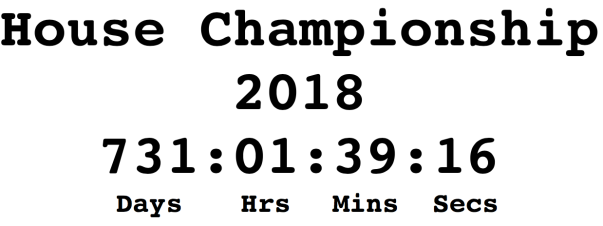
Recently I have been playing around with this feature to try to include a countdown timer for our House Championship Results day. With a lot of trial and error and searching online, I eventually found the timeanddate.com website to produce a countdown timer. This countdown timer shows during the other slides in the playlist but is always up to date and once approved runs like clock work!
Please note below is an image of the countdown timer. Click the image to see the countdown timer in action.
Share this:

SkiPd – Differentiated professional development.

Meeting the needs of all staff members during INSET is difficult especially when it comes to digital learning. Trying not to scare off the less confident staff but also challenging the more competent staff can be a struggle but with SkiPD it is possible.
 A simple idea based on the different colour ski slopes. Originally called iPad Ski Runs, these activities were conceived to try to challenge and support all members of staff, building staff confidence and competence. Staff self selected their route and workshops were run by Staff Digital Directors ranging from iPad Basics to iBeacons, Flipped Learning and iTunes U. The workshops offered a number of activities to support the wide range of abilities and engagement levels of staff. Staff felt comfortable in accessing the workshops with other staff of the same ability.
When the staff felt confident they were happy to engage and develop their digital learning skills.
Differentiation is so important in the classroom but can’t be over looked when it comes to staff training.
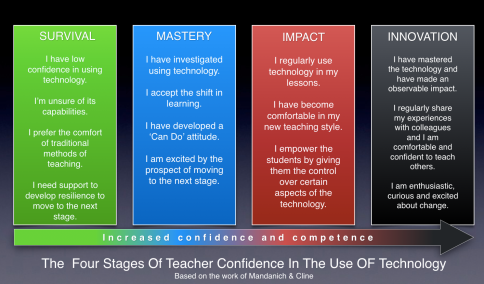
iPad Ski Runs a now known as SkiPD thanks to a good friend Mat Pullen.
View my showcase presentation from the ADE Academy 2017 where SkiPD is mentioned as one of many ideas to ‘Reach the hard to reach’ and lead change in your institution.
Share this:

Trilby TV – Switch on your signage.
Sharing learning has always been one of my passions and working on an iPad has made this so much easier. Ever since I started teaching I have been looking for ways to make this possible. Back in the old days (2009) I started to mirror my iPhone’s camera to the projector for students to peer assess analogue work without the need for 30 students to crowd around 1 student’s book. After the introduction of the iPad to my school students were able to showcase their learning easier by producing digital work that could be shared with the class, the school and eventually the world via social media. In 2013 I was lucky enough to be selected as an Apple Distinguished Educator and wrote my One Best Thing – Sharing Learning with Real Life Audiences .
When Trilby TV was shown to me a few years ago, I instantly knew that this would be a great platform to showcase the work of my students with a wider audience. Engaging with the school community as well as further afield in a simple but effective way.
What is Trilby TV?
TrilbyTV is the simple digital signage platform that helps you inspire and engage your viewers. Its the easiest way to show your own rich engaging content on screens around your school or business.
Features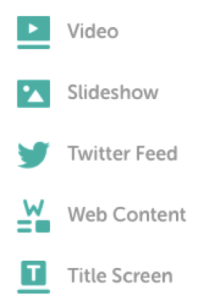
• Playback videos, Twitter feeds, slideshows, web content or Title Screens
• Scheduled playback – create schedule slots throughout the day
• Custom Playlists – select videos to playback in a specific order
• Category playback – Pick one or more categories and have your content update automatically as you add new videos
• Single item playback – great for welcome screens
• Caching – optimised for minimum bandwidth usage, caching saves your videos to reduce bandwidth, and to ensure your content keeps playing even when offline
• Shuffle playback – avoid the boredom and mix up the order of your videos
• Autoplay – enable autoplay to have your video start immediately once you open the app
• Player Dashboard – manage and monitor your players from our web-based console
TrilbyTV is the number one digital signage platform made for education, focused on student ownership and easy teacher sharing. TrilbyTV has been designed with schools in mind, to make it easy for them to share student content. Start engaging and exciting students, teachers and even parents with your own work.
Upload your video to TrilbyTV through the TrilbyTV app available on iPad, Chrome or through the web.
Trilby at Clevedon School
At Clevedon School Trilby TV helps us:
- Engage students in their school.
- Inform students, parents and visitors
- Showcase our school and the outstanding work of the students and staff.
https://app.trilbytv.co.uk/public/6e5ce47e-c813-47fe-8a59-4d2d49e0f6c3
With multiple screens around a large school site, Trilby TV and Apple TV makes managing the content on the screens easy. Via the Player Dashboard screens can be managed remotely . Changing the content or scheduling using playlists or categories. The dashboard even shows you when players are offline.
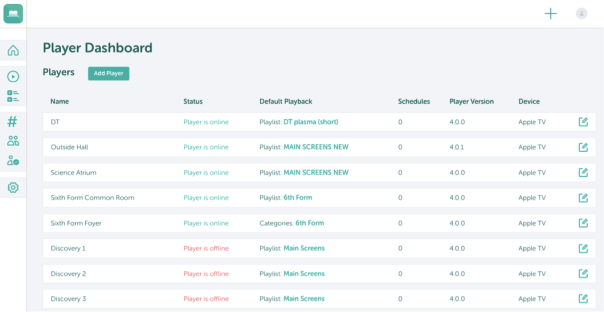
Additional players can be added easily using the screens unique onscreen code. Another great feature is that Players can also be embedded in web pages or VLEs. These web players can be an excellent way to engage with parents via your school website.
Recently at Clevedon, we have made good use of the Web Players by embedding them into a Firefly page to produce a ‘Tutor Dashboard’. This Firefly page is shown every Tutor time and is a one stop shop for tutors which includes shared calendars, daily plan, embedded web players and links to important documents. Students are exposed to all of the important whole school announcements like House Competition results and adverts. Using the web players, which replicate the physical screens around the school is easy. Once set up there isn’t any additional admin. Setting expiring dates on most of the uploaded content reduces the amount of admin and makes sure that the players are up to date and past events and adverts are removed automatically.

Twitter streams are an easy and quick way to keep your screens up to date. They are also an easy way for less confident members of staff to have their content published on the screens. Twitter streams are also a great way to engage staff in the great ideas and resources that are shared via Twitter. Staff room screens could show these streams along side staff notices, events and CPD opportunities.
https://app.trilbytv.co.uk/public/b7abeb15-ad2b-4d7f-a66c-ca5646df1338
https://app.trilbytv.co.uk/public/3514f6c6-5bba-4bb8-a272-e9562c2ecaba
The sharing of students digital and analogue work is currently shared by subject teachers and not uploaded by students…yet. In order to manage our storage space effectively we have chosen this way and only allow key students (Digital Leaders) to upload. If all 1200 students upload videos, our storage would quickly run out and we would be spending a long time watching and authorising content.
Scheduling of playlists is a very useful feature of Trilby TV. Screens can run numerous schedules and content can be changed automatically depending on the time of day. For example during Parents’ Evening welcome slides can be scheduled to show during arrival times and during lunchtimes canteen menus and house competition adverts can be shared.
Top 5 Apps to produce content for Trilby TV
- Keynote – Very creative when you know how and professional looking.
- Quik – Share images or videos easily in a professional looking video.
- Clips – Short videos to publicise events or demonstrate learning.
- iMovie – Trailers or projects.
- The built in Camera – Point, shoot, upload and share! Share digital or analogue work.
Although that it seems that we are doing a lot with Trilby, I still think we could probably push it a little further. In the future we wish to experiment with live feeds using the Web content feature during events such as sports day and house championship events. Last year Digital leaders were responsible for sharing videos from sports day for students to see and watch back, but we would love to see if live streaming would be possible. Watch this space!
Share this:

Apple Classroom, the best thing since… iTunes U
I have a new favourite app (after Clips… sort of) that I suggest every teacher that uses iPad in their classroom must use, Apple Classroom.
Ever since the major update this summer that has meant that you no longer require an MDM to set up, Apple Classroom has been going from strength to strength and the development team have obviously been listening to the requests from teachers.
Classroom turns your iPad into a powerful teaching assistant, helping a teacher guide students through a lesson, see their progress, and keep them on track. With Classroom, you can easily launch the same app on every student device at the same time, or launch a different app for each group of students. Classroom helps teachers focus on teaching so students can focus on learning.
When teachers are relatively new to iPad in the classroom, Classroom can make the transition an easier and smoother process. Less confident teachers worry about the lack of ‘control’ that iPad may bring to the lesson but Apple’s latest must have app for education is supporting teachers so they can focus on teaching and the students can focus on learning.
Easy to set up, easy to use and students do not need to download an app!
Key Features

Remote Control – Launch apps, websites or iBooks on a students device, a group of students or on every iPad in the class.
Screen view – Glance at any screen on your classroom with just a tap.
Share work on the Big Screen – Project any student’s screen on an AirPlay enabled screen.
Mute – Mute all devices in the room when Clips soundtracks are being chosen!
Lock devices – Lock student’s devices during teacher talk.
Air Drop – Share resources from the teacher device to all students with just one tap.
Bluetooth Connectively – No MDM required to set and use. Students automatically join the Classroom when they enter the class.
For more information on how to use Apple Classroom click here.
Update 2.1
One of the best features about Apple Classroom has been the Class Summary which arrived in the latest update (September 2017) Class summary allows you to view information about the student’s use of their iPad during the class. The Class Summary pane appears automatically when you end a class .
You can tap each item and view:
- App usage: What apps were used by the students and the length of time the students used them during class.
- Items shared: Documents or websites shared by the students.
- Student list: The list of students that participated in the class.


Apple Classroom is truly amazing and just what every teacher in an iPad classroom needs to help students and guide them through their learning without loosing ‘control’. Using iTunes U and Apple Classroom to their try potential can help students and staff get the most out of iPad in their classroom without spending a penny!
Share this:

iBeacon Project at iClevedon
After seeing iBeacons being used in a retail setting I was immediately excited at their potential within education and in particular schools that have invested in a 1:1 iPad deployment. I first saw the Estimote beacons in November 2013 on twitter as a promoted tweet and quickly visited their site to purchase a developer kit.
A few weeks past while the developer kits were being shipped which gave me time to think about how they could be used at Clevedon School. After I received the package from the US opened them up to discover some pretty cool looking beacons but with very little technical ability to actually make the dream a reality. I knew what I wanted to happen but didn’t know how!  Luckily I knew someone who could. At Clevedon School we are lucky to have such a talented group of Digital Leaders and one of these is a very talented iOS Developer and had his first app on the App Store at the age of 14. Now in Year 11, Lewis Smallwood was the technical genius behind the iBeacon Project at Clevedon School.
After several brainstorming meetings we decided to use the Beacons to share location specific notifications and resources. Using the existing Clevedon Handbook App we were Apple to integrate the iBeacon function to help students receive notification or lesson resources by simply walking through the door.
After the success of the trial, we have know purchased more Beacons to allow more subjects access to this groundbreaking technology. We are also currently planning a totally interactive Open Evening experience for prospective students and parents.
It was great to also present this project at The ADE Global Institute in San Diego in July as iBeacons where a huge part of the gathering of over 400 ADEs and over 100 Apple staff.

Image courtesy of @jnxyz
How iBeacons are being used in education at the moment is just the start and I feel we have achieved something that will only get better. The best use for iBeacons in Schools has probably not been dreamt up yet, but I’m confident that at the moment we are definitely leading the way.
For information about iBeacons in Education visit Jonathon Nalder’s Blog ‘The World First iBeacon Schools’
Share this:

UPDATED – How to get great looking iOS and OS X app icons for presentations.
Some may call it OCD or just very picky but one of my pet hates is seeing app icons on presentations that are either not stretched and misshaped or highly pixelated. 
The solution to great looking apps is as follows.
There are a number of different ways to achieve awesome looking app icons.
A while ago I found a Mac Application on the Web that finds the High Resolution app icons from the App Store and saves them as a .png file on your desktop.
The application I use is iTunesIcon V2.1 . After you have found the right icon you need, you need to make some slight adjustments to make it look just like the icons on the App Store and your device. This can be achieved in Keynote, PowerPoint or Adobe Photoshop or Illustrator.
I use Keynote as these are quick and easy.
Keynote

Insert the shape which resembles the App icon (Squircle) . Format the shape and fill with the icon .png file that was found using iTunesIcon. You can drag and drop the .png file into the Style window or located using the Choose option.
Once you have filled the shape with the icon make sure you scale to fit. You may wish to add some other effects such as shadows and reflections at this stage. Download the Keynote here to simply drag and drop your App Icon image into the fill.
PowerPoint
This is really simple, drag and drop the .png file onto a slide and format the image using the Bevel Rectangle setting.

You may wish to use Adobe Illustrator or Photoshop however I find this method a lot quicker and easier.
If iTunesIcon fails to find the right image, return to the App store and copy the whole title of app and paste into iTunesIcon. Failing that use Google to locate a large image of high resolution.

You can also get High Res icons of Mac Apps that are installed on your Mac. Unfortunately I have not yet found a way to download any Mac App icon like the one described for the iOS Apps above.
To download High Res icon images on your Mac, follow the steps below.


Share this:

Science 6 Marker Mat – Inspired by @JamieClark85 revamped by @steve_sdavis
 After the success of the SIXCESS resource produced by myself and @MrBAyres to help students prepare for 6 Mark Questions in science exams the evolution of the resources has snowballed.
Steve Davis, a colleague of mine at Clevedon School, spotted some awesome resources by @JamieClark85 and started to think how they could be adapted to be used within a science classroom.
Jamie had developed a series of overlays that could be used within an English classroom. Jamie’s examples can be seen by clicking the image below.
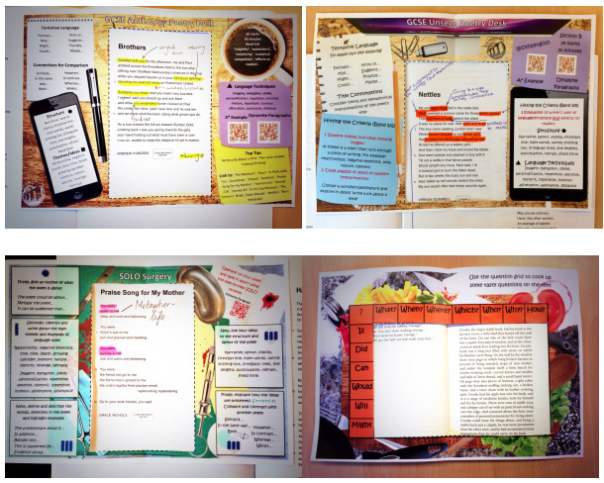
Steve did a cracking job with the content and visited me to add some magical touches! The pins icons, SIXCESS logo and certified stamp! A relatively small job but Davis seemed impressed!


The PDF can be downloaded by clicking the link below. Cut out the example in the centre and use as an overlay or laminate and use as it is.

Share this:

Experience Life App – Science Apps from Imaxina
Experience Life App – £5.99
 “Experience Life” is a complete educational application about the vital role of the relationship of man.
Through the nervous system’s response to external stimuli, we relate to other living beings and to our surroundings. Our senses receive stimuli; the nervous system processes the information and responds in the most appropriate manner; then, the musculoskeletal system implements the action.
Available in English and in Spanish, the development of this application was supervised by educational and medical professionals to explain the workings of THE SENSES, the NERVOUS SYSTEM, and the MUSCULOSKELETAL SYSTEM in an enjoyable and entertaining way.
Taking advantage of iPad functionalities, it has interactive illustrations, games and animations which reveal an entirely new approach to learning.
Its innovative navigation moves forward in a natural environment, associating educational content with the capabilities of certain animals. This catches the user’s attention and motivates interaction designed to improve learning.
What I think…
This app is awesome! There is very good interactive element to this app with a range of learning styles catered for. A range of activities and simple to use interface makes this book very accessible to all learners and a range of ages and makes the learning and enjoyable experience. Visually excellent and very accurate science pitched at the correct level to match the literacy abilities of the user. A great focus on scientific literacy throughout linked to visual stimuli and diagrams. A superb resource for students to use during lessons, at home or for independent study. A really enjoyable app to use and learn with that is well worth the money.


Share this:

The Miracle of Life App – Science Apps from Imaxina
The Miracle of Life – £5.99  The Miracle of Life is a complete educational application, focused on the human body’s cycle of life. Available in both English and Spanish, its creation has been supervised by professionals in the fields of education and medicine. In a fun and entertaining manner, it explains the secrets of fertilization, gestation, and human growth. Taking advantage of the iPad’s capabilities, it includes interactive illustrations, games, and animation clips, which allow users to discover an entirely new form of learning. New navigation gives the application a narrative continuity that captures the user’s attention and motivates interaction. GAME
The application is rounded out by a fun educational game: You must help a tiny friend navigate through the female reproductive system. Your mission: fertilize the egg. To do this, you must complete five exciting phases, loading up on energy and speed to overcome all of the difficulties you will find along the way.
What I think…
This app is awesome! There is very good interactive element to this app with a range of learning styles catered for. A range of activities and simple to use interface makes this book very accessible to all learners and a range of ages and makes the learning and enjoyable experience. Visually excellent and very accurate science pitched at the correct level to match the literacy abilities of the user. A great focus on scientific literacy throughout linked to visual stimuli and diagrams. A superb resource for students to use during lessons, at home or for independent study. A really enjoyable app to use and learn with that is well worth the money.


 Smarter Learning